

We’re here to help.
Download ClearBrain and the guides
The installer lives on our downloads page, along with the step-by-step Installation Guide, the Software Guide covering every screen, and the Hardware Manual.
The two most common issues are the easiest to fix. See below for other troubleshooting answers.
ClearBrain cannot get a clean signal
It takes a long time for the signal to start, or the Control Panel never moves beyond Building Baseline. This is usually one of two things: something between the sensors and your skin, or too much movement.
Check the ear clip is on skin and not hair, and that the scalp sensor sits directly on your scalp, not sideways. The sensor is spring-loaded, so you can tap the top of it to be sure it is seated properly. Then sit calm and still after clicking Start.
A small amount of skin-prep gel (NuPrep) on your ear and scalp often improves the signal dramatically, even though the sensors are dry.
The amplifier will not connect
Check it is charged, that Bluetooth is on, and that it is not still paired to another computer — it will only talk to one at a time. On a desktop, confirm the USB Bluetooth adapter is seated and that Windows lists it under Bluetooth & devices.
Common questions
My license key will not activate
I am changing computers
My sensor pins get stuck or are not ‘springy’ anymore
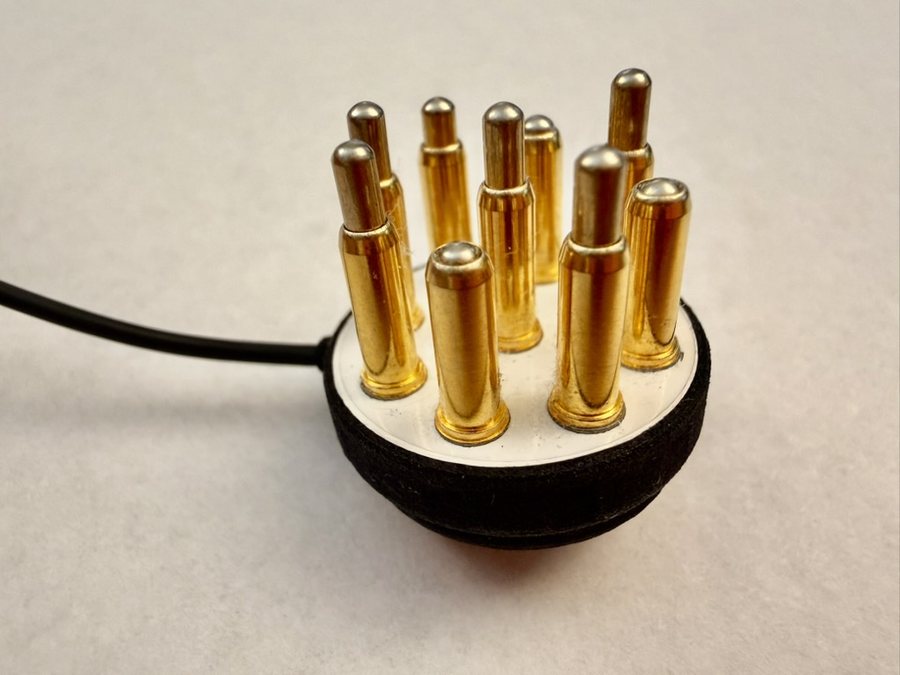
Something arrived broken, or stopped working
I want to buy another cable, sensor or hat
Where are my session files?
What we cannot help with
ClearBrain is a general wellness product, not a medical device, and we are not able to give clinical advice, interpret your data, or tell you what a reading means for your health. If you have a health question, that belongs with a professional who is licensed or certified to help with this. For what the software does and does not measure, see the FAQ.
Still stuck
Write to support@clearbraintraining.com. Include these and it can usually be settled in one reply:
- Your ClearBrain version number and your Windows version
- Your amplifier’s serial number — printed on the back of the amplifier, and barcoded on the box
- What you were doing when it went wrong
A screenshot of the Control Panel is worth more than a description of it. Please send screenshots only — we do not need your session files or a session report PDF, and we would rather your recordings stayed on your own computer.